
I’m reading Dave Ramsey’s book The Total Money Makeover. Has anyone read it? Has anyone applied it?
It’s basically a self-help book to get out of debt and start making your money work for you. He says that your finances are like marriage, a career, raising kids, or anything else in life…you have to put time and effort into it in order to have success with it. True!
J and I have always put effort into our financial planning, but we also have a spending problem. We fall into the “enjoy it now” category, instead of the “save for later” category. So I am reading the book to try to get ahold of our spending so we can be millionaires and do whatever we want later! Ok, that is a lofty goal, but you get the point! 😉
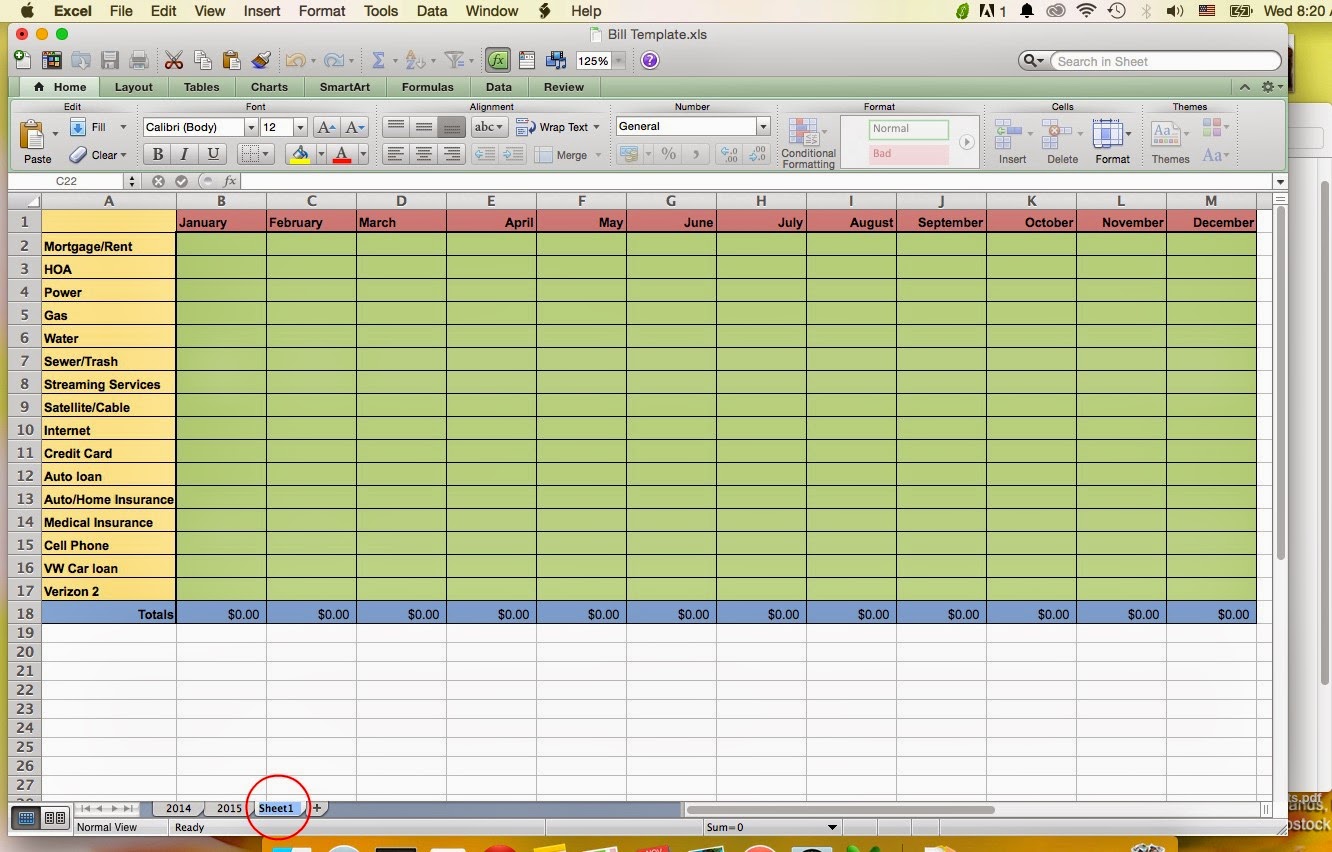
Anyway…I thought I would share with you all the spreadsheet I use for my bills. It’s just a simple spreadsheet with basic formulas. I have been using it since 2009 to monitor our bills, since everything is auto-deducted these days and it’s so easy to overlook what is going on and forget if something has been paid or not! This is a handy tool to keep track of it all! Plus, it allows you to see trends in your energy usage, and viewing everything in one glance can show you where you may be spending too much and can try to cut costs.
Download Spreadsheet (This downloads as a spreadsheet and opens with Microsoft Excel, even if it looks different in this viewer. If you have a problem, let me know and I can send it another way.)
All of the formulas and formats are saved in the document already. Just download and save to your computer! Easy peasy! Does anyone else have helpful tips or tools that you swear by?
If you have never used an Excel Spreadsheet and need further instructions, continue reading and I’ll show you how to continue this spreadsheet for years.
How to Add/Delete Rows
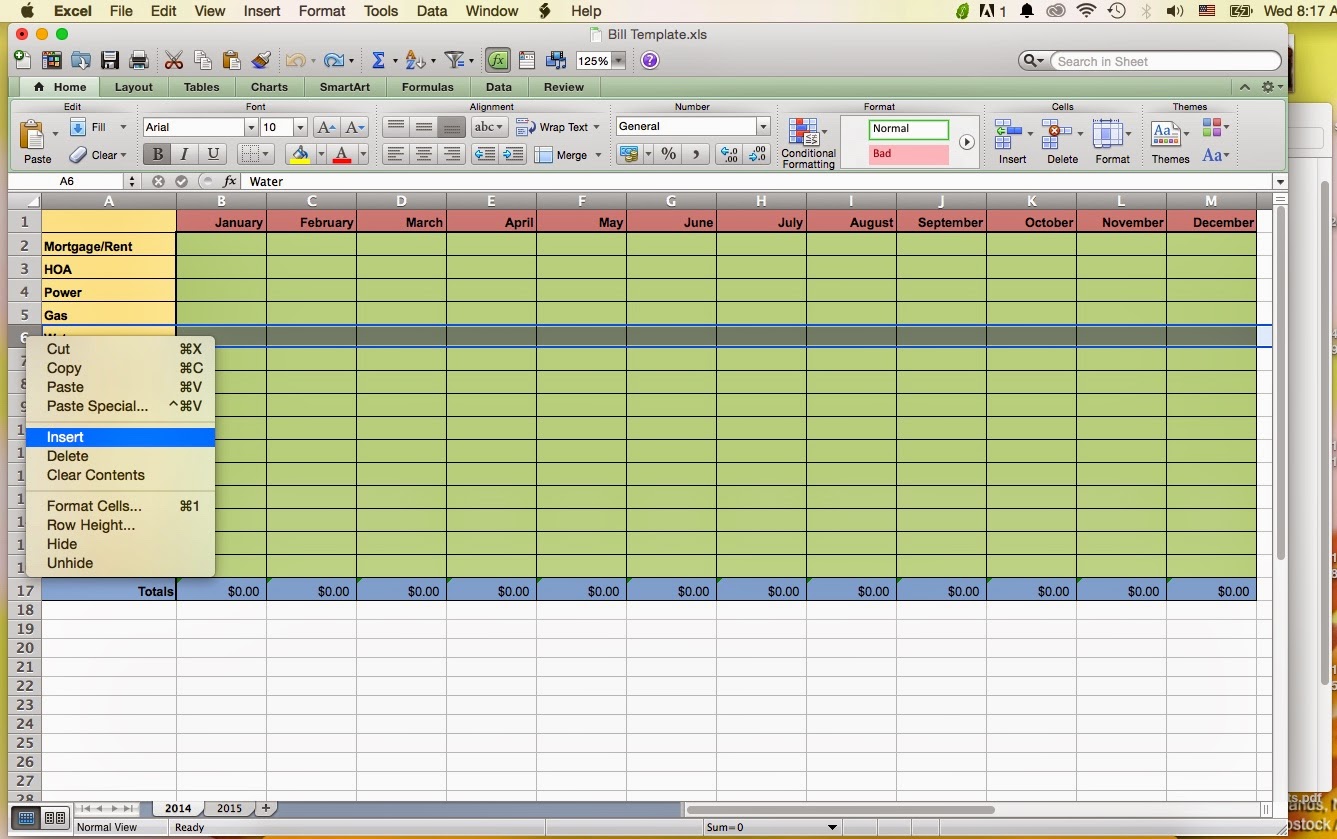
To delete a row, select the row you want to delete (click the number to select the whole row), right click your mouse, and select “delete”. The row will delete and the rest will move up to fill the spot.
If you just want to delete the contents of one box, click just that box and start typing whatever you want to replace it with. Or you can click the box and hit “delete” by right clicking your mouse, or using the delete button on the keyboard.

How to Add a Sheet
- At the bottom of the spreadsheet by the pages tabs, click the + symbol for a new page and a new blank page will appear.

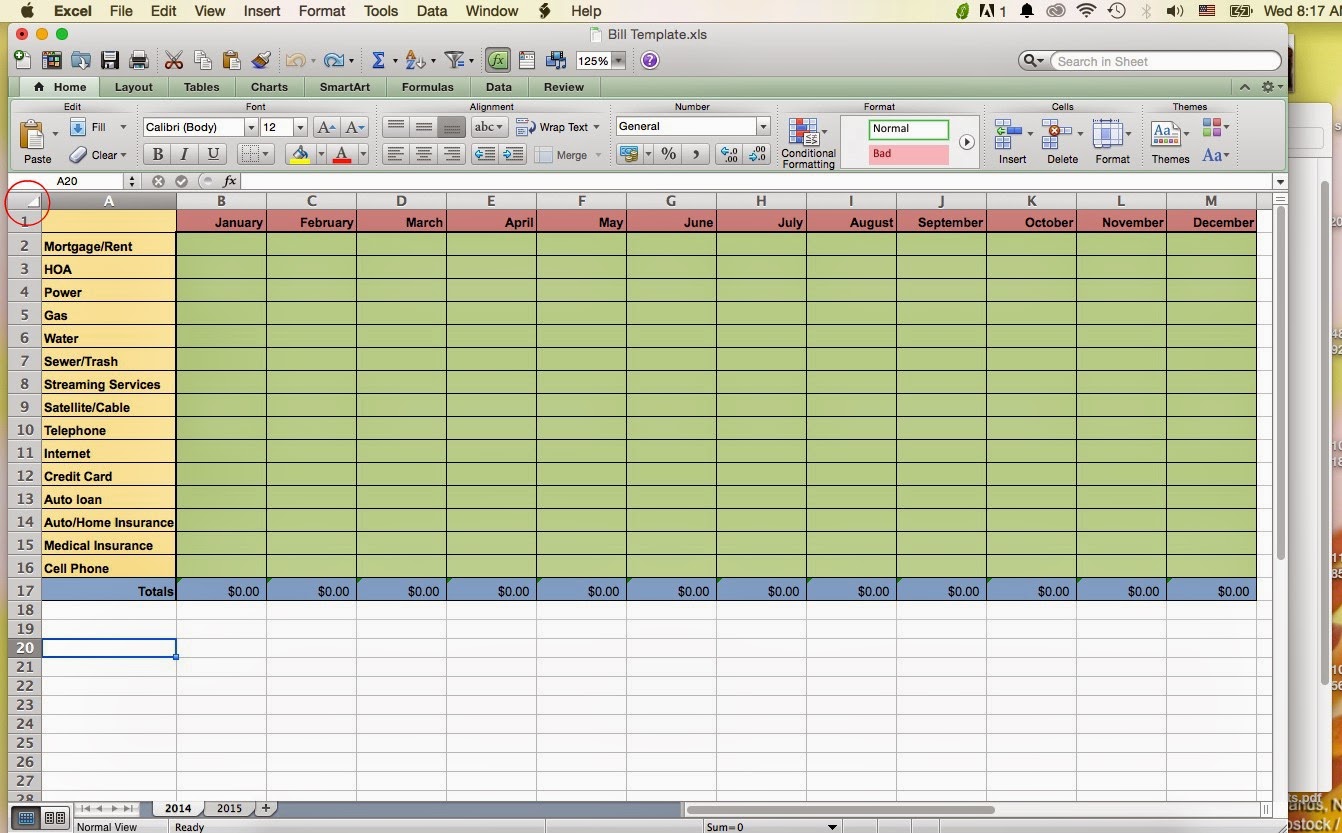
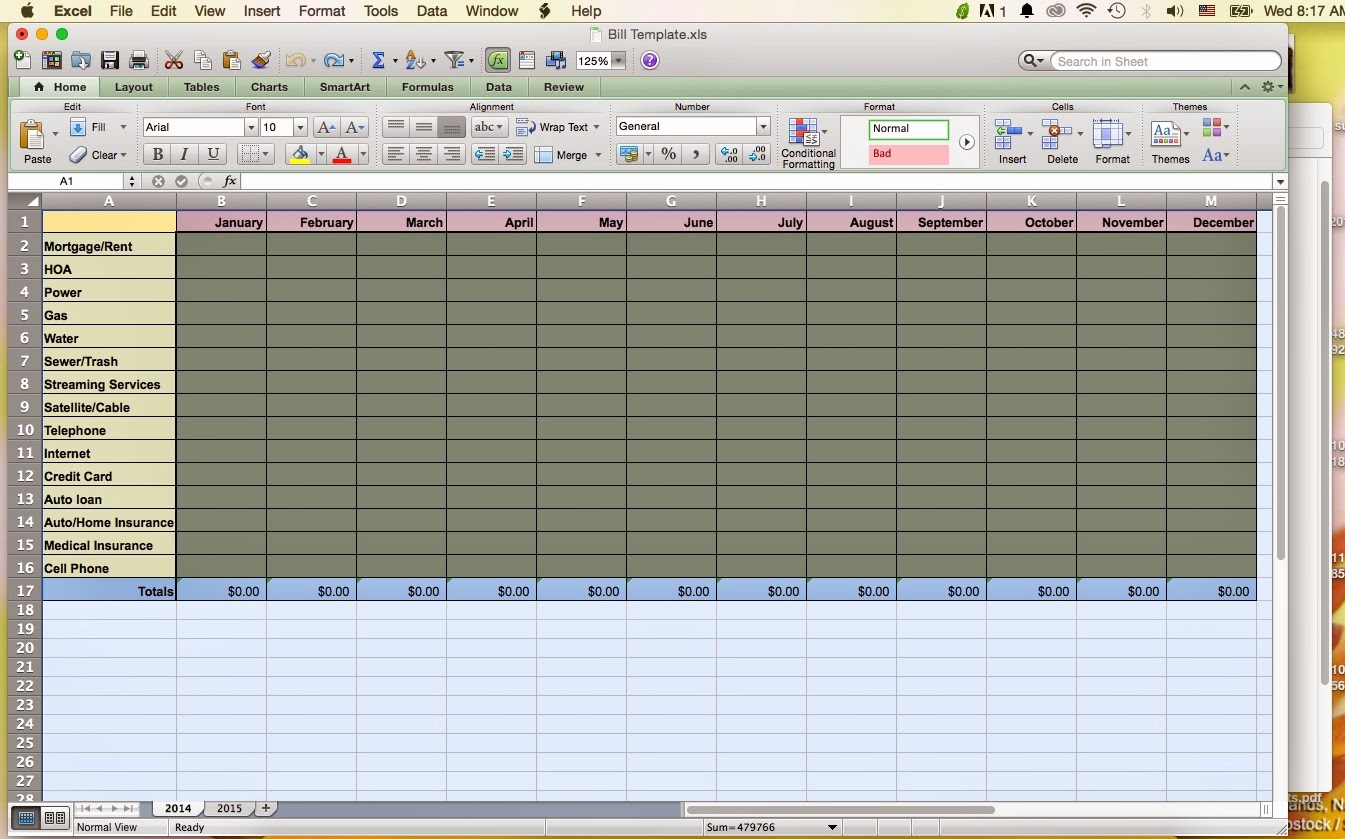
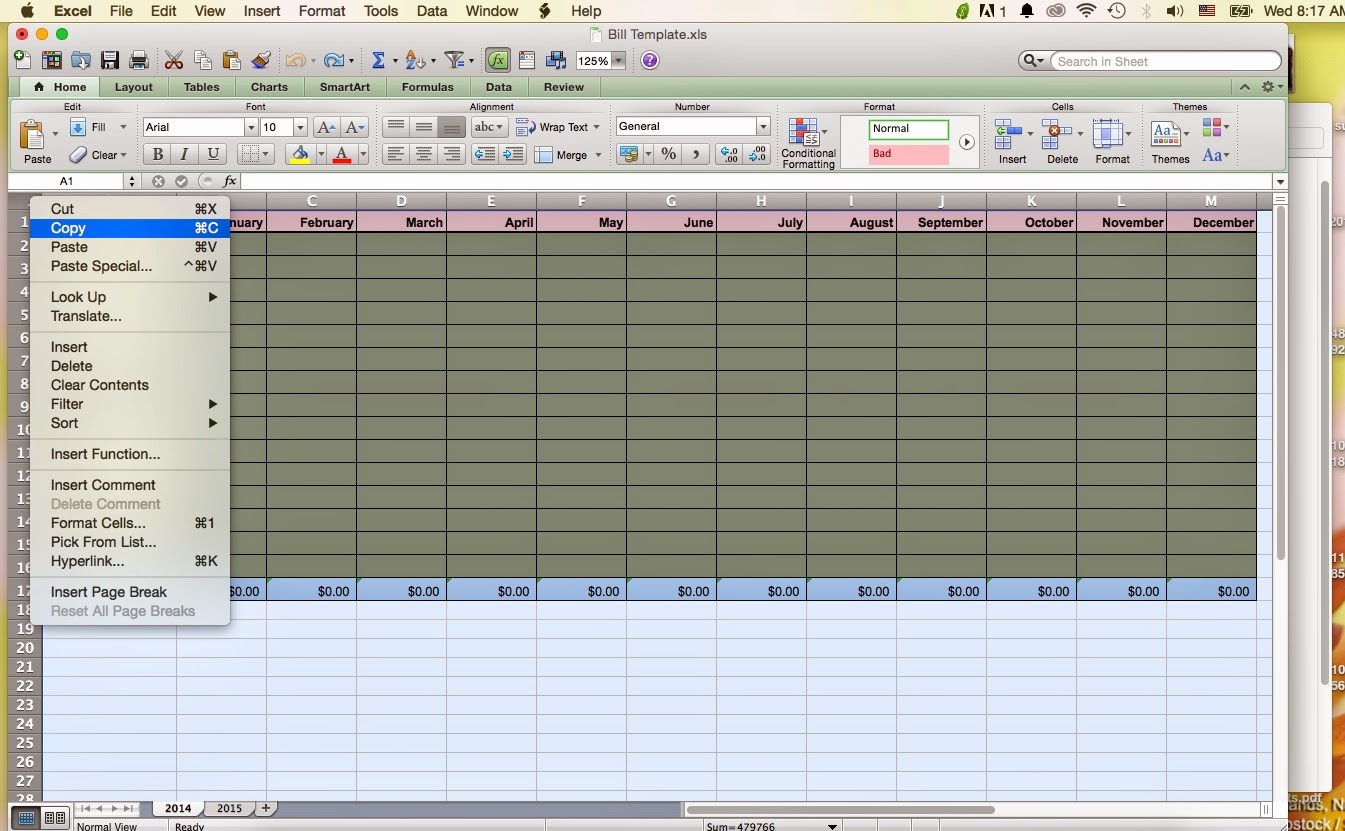

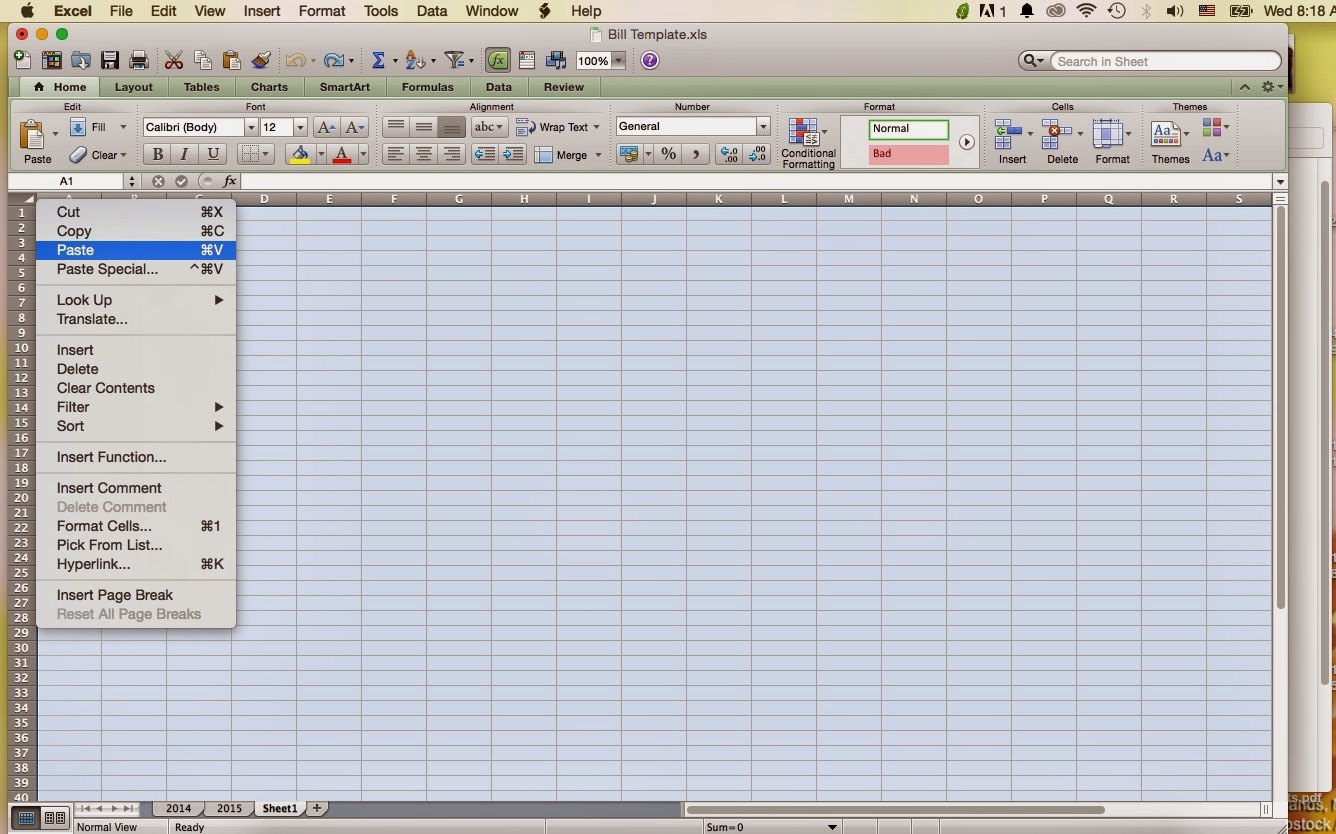
Right click your mouse and select “paste” from the drop down. This will paste everything from the other page; colors, formulas, and text.
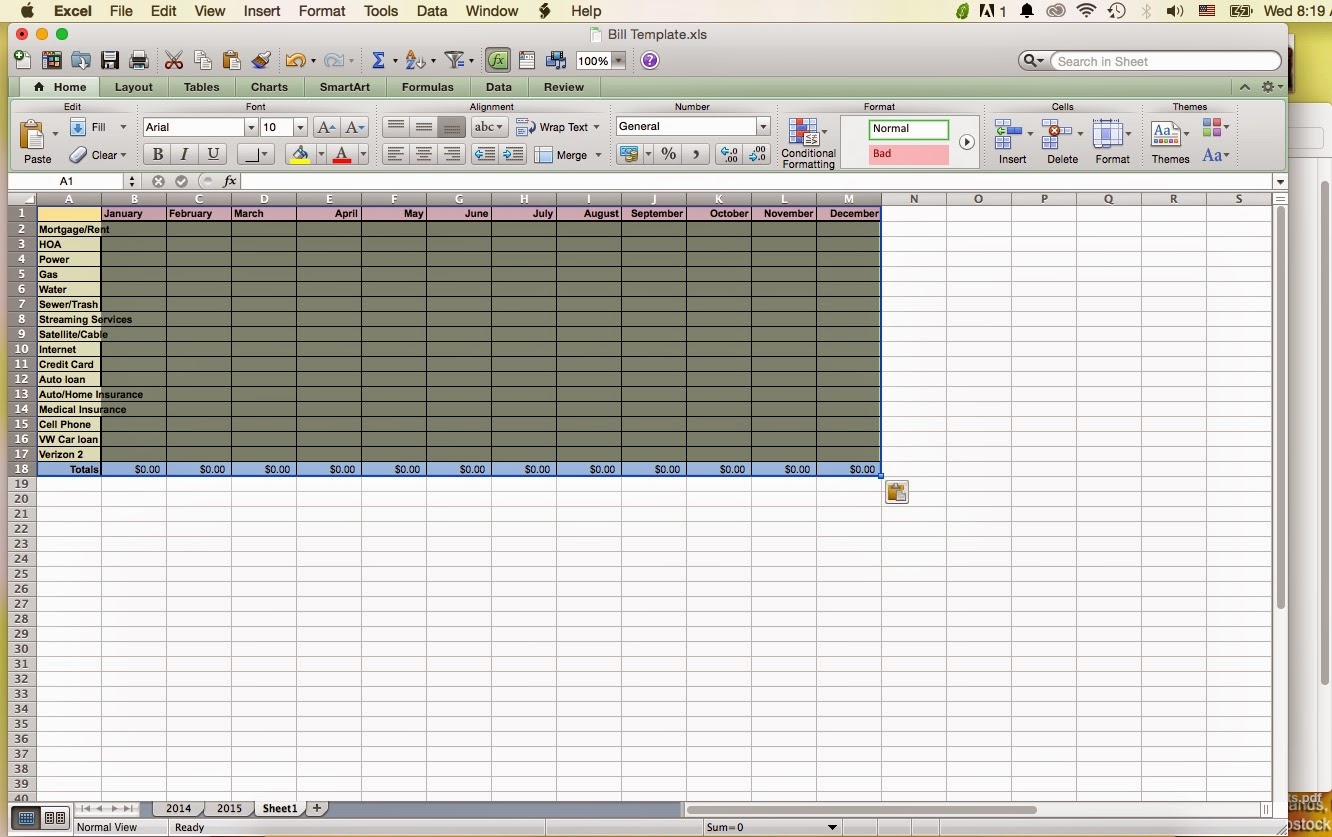
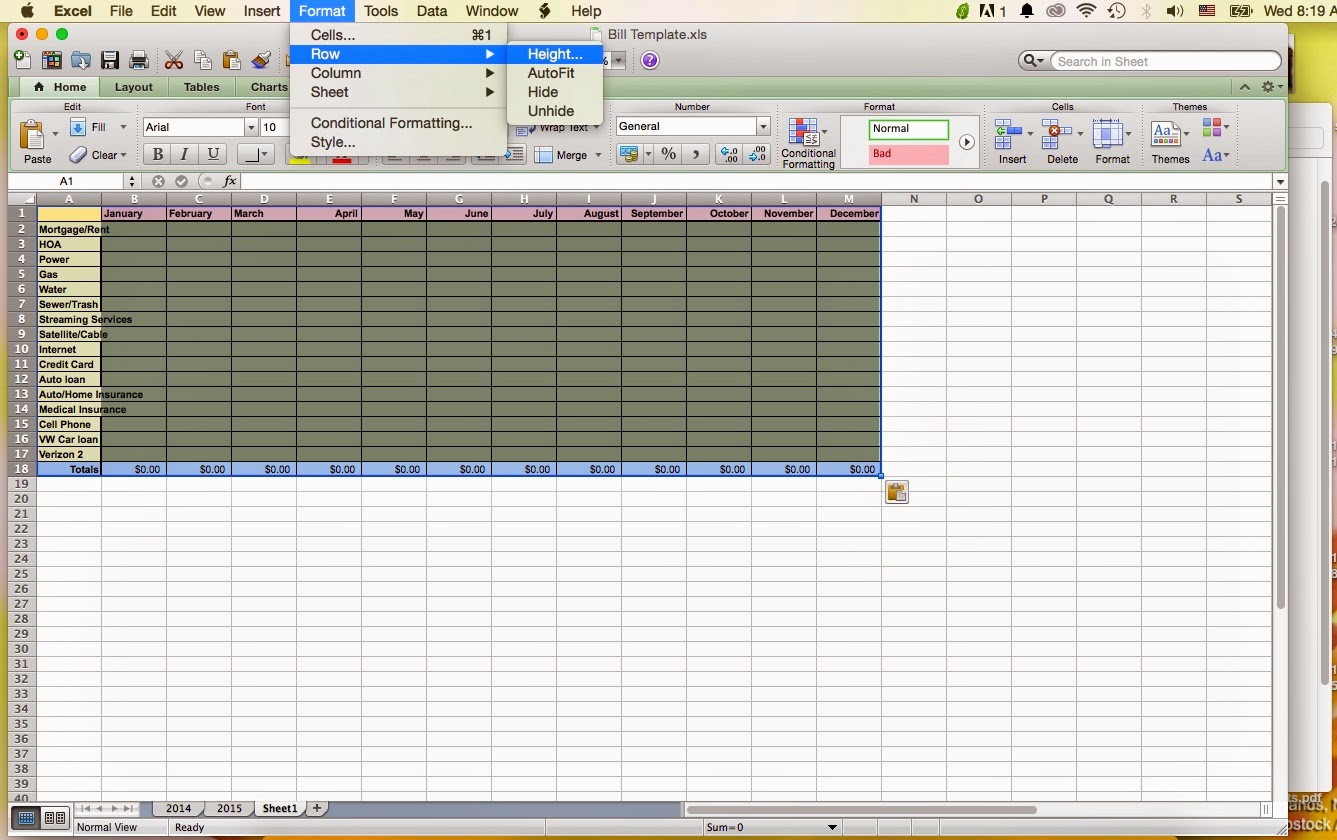
In the top menu bar, click on Format– Row– then Height.
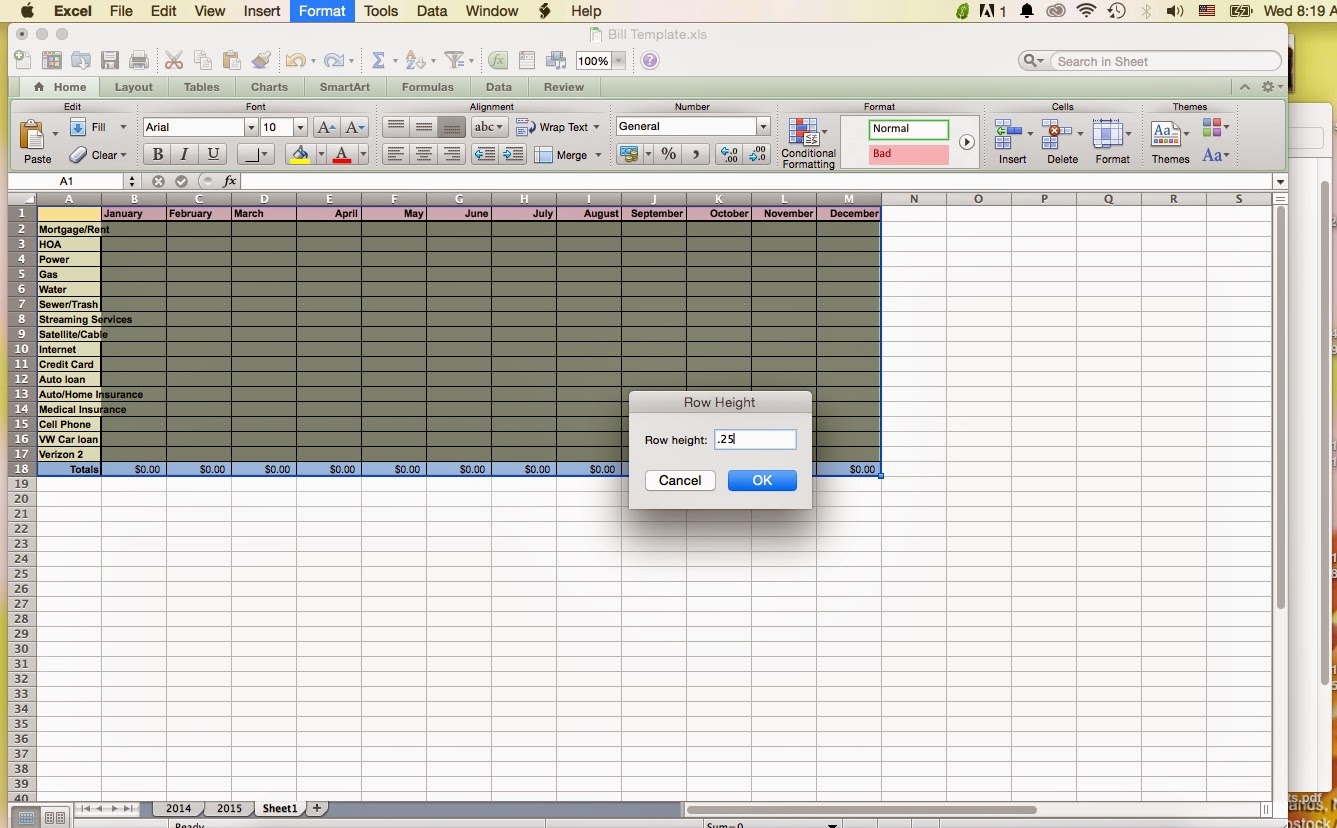
Type .25 in the box and click “OK”. (this is what I used for my spreadsheets. You can change if you want to.)

Type 1 in the box then click “OK”.
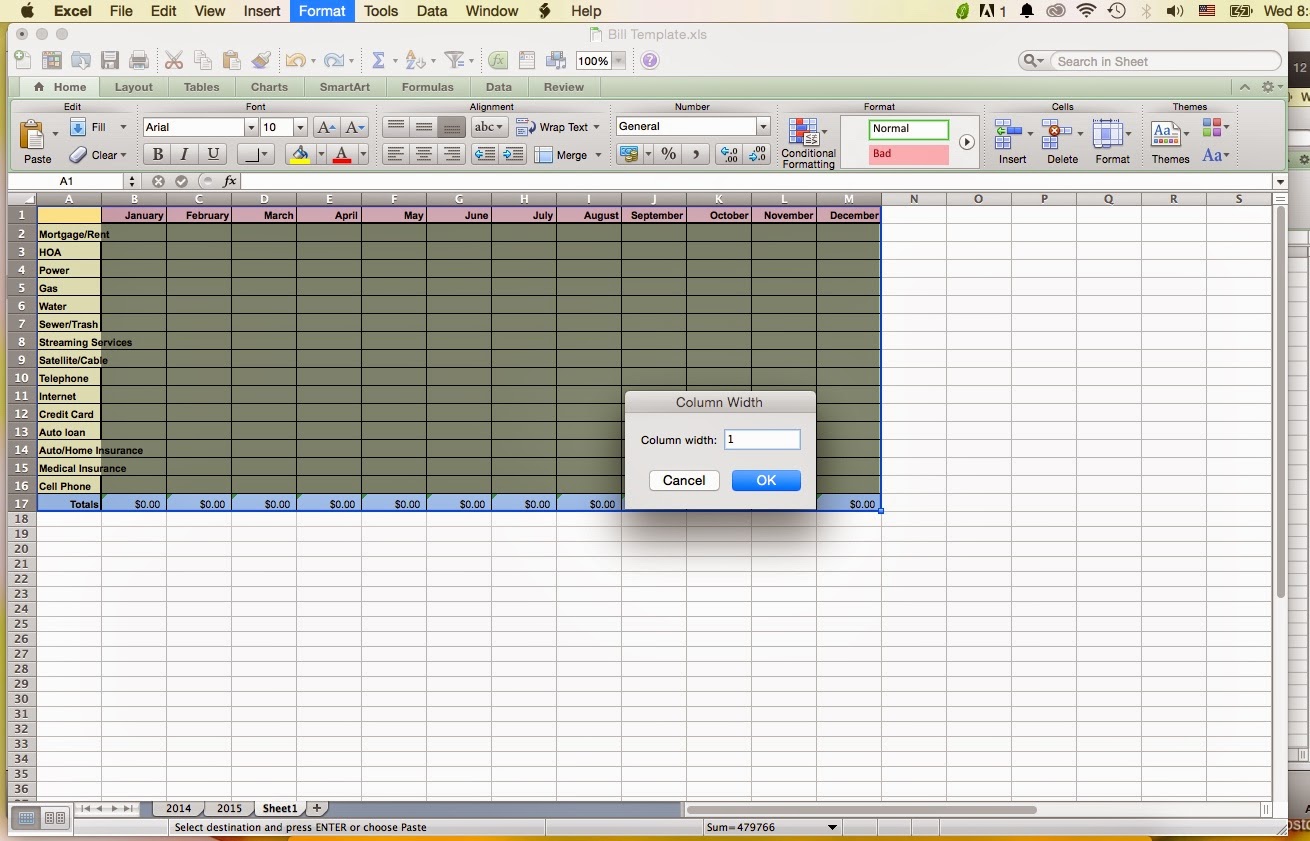
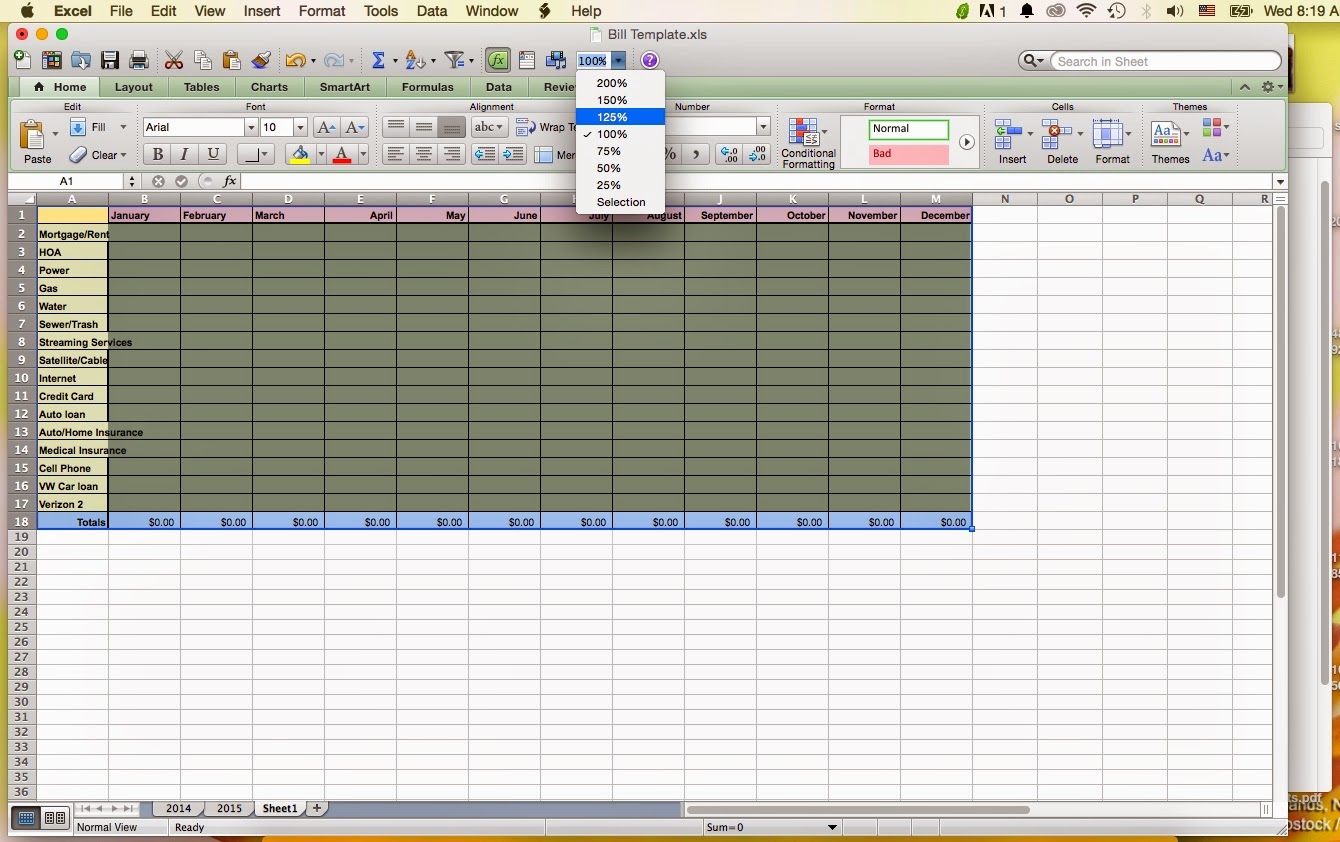
Now go to the top bar where it says “100%”. Click on it and select 125% in the dropdown. Your new page should look like your other pages now.
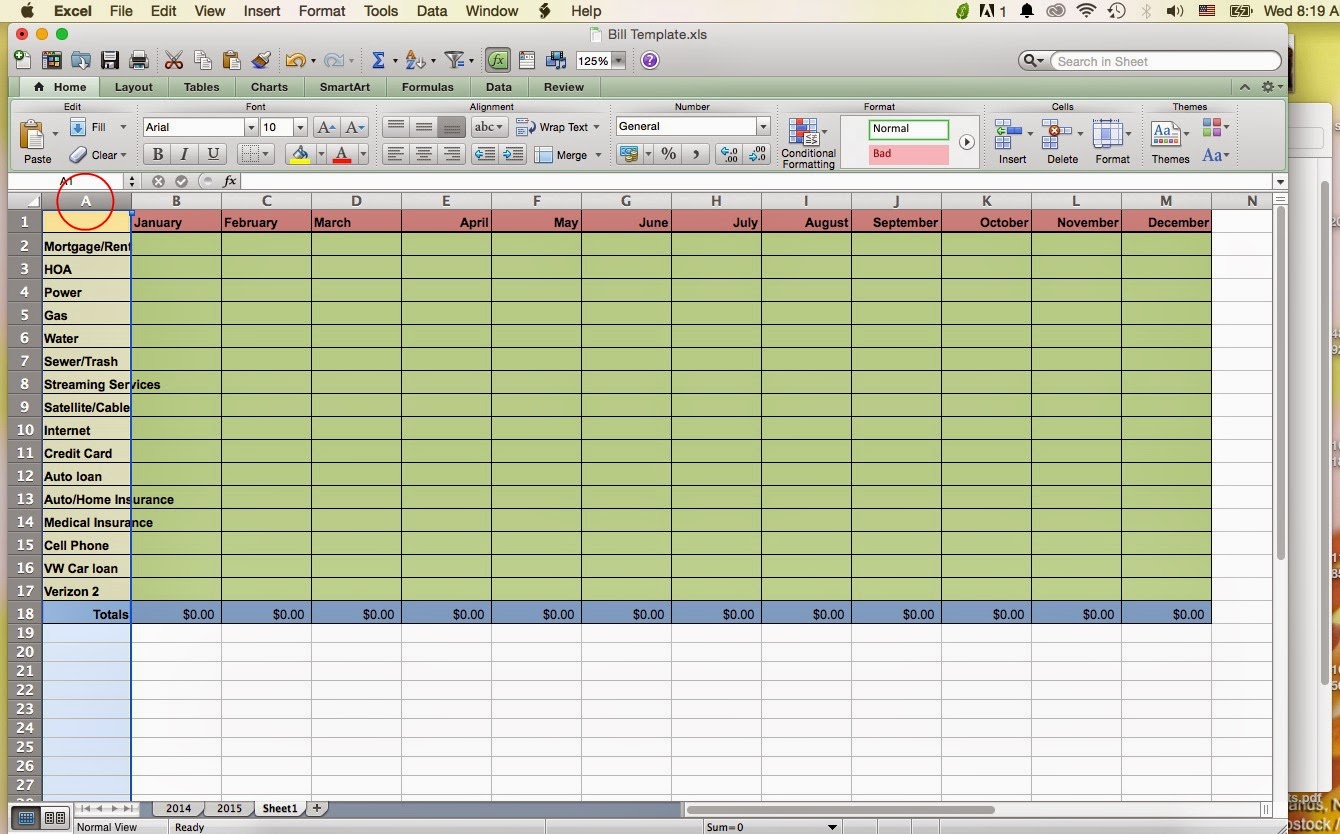
The last thing that needs fixed is the A Column for the bills. Clicking the “A” will select the whole column.
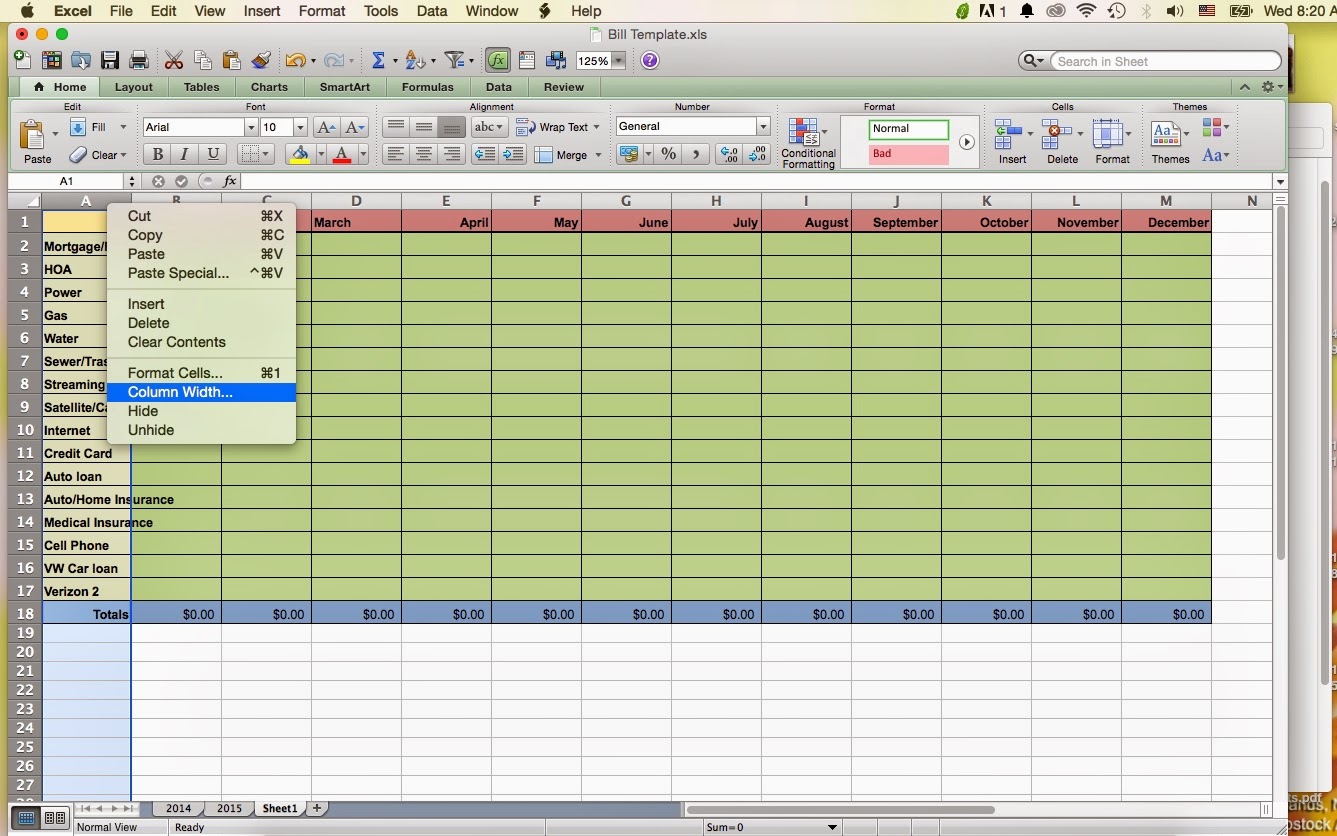
With the column highlighted, right click the mouse and select “column width” from the menu.

Now all you have to do is change the name of the new page! To do that, just double-click the page so it is highlighted.

 Tuck & Sundry
Oh…that dreaded word…BUDGET! Ha ha! I'll have to put a lot of thought in to this because it takes some dedication for me to stick with a spreadsheet, but thank you for sharing the download. And all of the info! 🙂
LikeLike
I went through a Dave Rsmsey teaching..still have the program! Remember the handy dandy tip card you have/had? He also talked about paying everything with cash…i have no credit card so that is pretty easy to do. ;-)I used a spreadsheet before…it connected with the bank and when I logged on..it filled in the amounts for me..think I only had to add the catigory at times. This is with Quickbooks Home addition.Being on a budget is a smart thing to do..and sticking to it can be a challange..but rewarding. Good job you to! 🙂
LikeLike
Oh…that dreaded word…BUDGET! Ha ha! I'll have to put a lot of thought in to this because it takes some dedication for me to stick with a spreadsheet, but thank you for sharing the download. And all of the info! 🙂
LikeLike
I went through a Dave Rsmsey teaching..still have the program! Remember the handy dandy tip card you have/had? He also talked about paying everything with cash…i have no credit card so that is pretty easy to do. ;-)I used a spreadsheet before…it connected with the bank and when I logged on..it filled in the amounts for me..think I only had to add the catigory at times. This is with Quickbooks Home addition.Being on a budget is a smart thing to do..and sticking to it can be a challange..but rewarding. Good job you to! 🙂
LikeLike